Gecko Duo Controls for Every Device
Move, jump, and tongue-swing without fighting your inputs mid-climb.
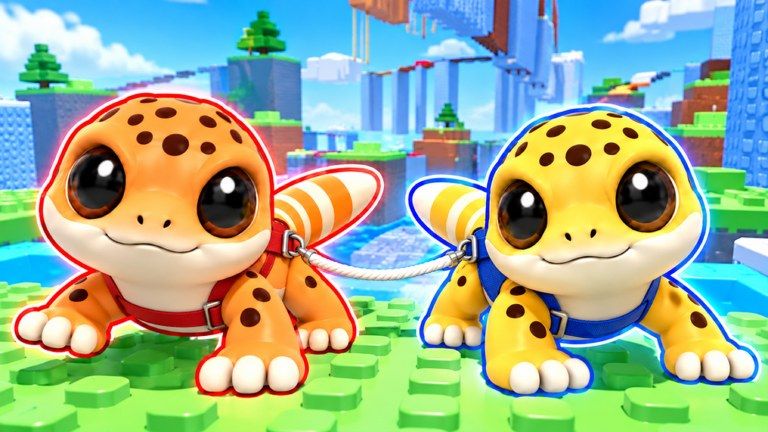
Gecko Duo feels simple until the tether turns a missed jump into a shared wipe. Clean inputs are the difference between a funny fail montage and a clean clear. This page covers movement, jump, and sticky tongue swing habits for PC, mobile, and console. Exact keybinds can vary by device, Roblox client version, and any remaps you set—always open the in-experience settings or on-screen prompts and confirm what your client shows before a hard stage.
If you are brand new, pair this page with Getting Started and the Players Hub. Team habits live in Duo Teamwork. Use the Partner Checklist before long sessions so both players finish settings checks together.
Core actions you will use every climb
Regardless of platform, three action families matter:
- Locomotion — walk, run, and camera look so both geckos stay on the same line of platforms.
- Jump — leave a pad with enough height and forward intent that your partner is not yanked sideways.
- Sticky tongue swing — latch to a valid surface or swing point, build a short arc, and release onto a safe landing.
Everything else (menus, emotes, chat) is secondary during a live attempt. Mute non-essential UI noise if your device allows it.
PC defaults (keyboard and mouse)
Most Roblox experiences map movement to WASD, jump to Space, and camera to the mouse. Gecko Duo follows that pattern for basic traversal. Tongue or interact actions are usually bound to a nearby key (often something like E, F, or a dedicated ability key shown in the tutorial prompts). Because patches and personal remaps can move those binds, treat the table below as a starting checklist, not a permanent law:
| Action | Typical PC input | Practice note |
|---|---|---|
| Move | WASD | Keep strides short near edges so the tether does not stretch |
| Jump | Space | Jump only when your partner is stable or calling go |
| Camera | Mouse | Center the next swing target before you leave a pad |
| Tongue / interact | On-screen prompt key | Confirm in Settings after every client update |
| Shift lock (if enabled) | Shift or toggle in Roblox settings | Helps aim tongue lines on vertical walls |
Recommended PC habits:
- Lower mouse sensitivity until you can track a swing point without overshooting.
- Disable conflicting browser or overlay hotkeys that steal Space or E mid-run.
- Keep one hand free for chat only between attempts—not during a swing.
Mobile touch layout
Mobile players rely on a virtual joystick, jump button, and ability/tongue button. Button size and opacity matter more than raw skill here. Open Roblox or in-experience mobile settings and enlarge the jump and tongue controls so you do not miss taps while the camera moves.
Mobile tips that save runs:
- Use a light claw or two-thumb grip so look and jump stay independent.
- Reduce camera sensitivity if tongue aims feel slippery.
- Sit the device on a stable surface for long climbs; hand sweat causes late releases.
- Agree with your partner that mobile may need an extra beat before each swing—call wait freely.
If your phone struggles with frame pacing, lower graphics quality. Smooth input beats pretty shadows when a tether wipe costs both players.
Console and controller notes
Controller support follows Roblox’s standard left-stick move, face-button jump, and right-stick look pattern. Ability or tongue actions typically sit on a bumper or face button called out by the experience UI. Because console layouts differ across Xbox, PlayStation, and third-party pads, open the controls overlay once per session and screenshot it if needed.
Controller-focused advice:
- Deadzone: raise slightly if stick drift yanks you off thin platforms.
- Vibration: leave on if it helps you feel landing impacts; turn off if it blurs aim.
- Headset chat: prefer voice so your thumbs never leave the sticks for typing.
If a bind feels wrong after an update, remap in Roblox settings first, then re-check the experience prompt—do not assume last week’s diagram still matches.
Tongue swing technique tied to controls
Sticky tongue swings punish late camera work. Before you press the tongue input:
- Stop on a safe pad and face the latch point.
- Confirm your partner is either ready to follow or holding position.
- Trigger tongue, allow a short arc, then release toward the landing—not straight into a wall.
- Land, settle the tether, and only then call the next move.
Common input mistakes:
- Jumping and tonguing in the same frame without a clear target
- Holding forward while the rope is already taut
- Releasing the tongue early because a finger slipped on mobile
- Turning the camera mid-arc without telling your partner
Rank tongue swing mastery against other skills on the Techniques Tier List once the buttons feel natural.
Tether-aware movement
Controls are personal; the tether is shared. Never sprint full stick toward a gap if your partner is still mid-jump. Short taps keep both geckos aligned. If you feel a sudden pull, stop forward input immediately and let the rope settle instead of fighting it with more jump spam.
Practice a thirty-second drill at the start of every session: walk together across easy pads while only one player jumps at a time. That drill teaches your fingers to wait for callouts before your brain invents a heroic leap.
Settings checklist before ranked-feeling attempts
- Confirm jump and tongue binds on your device
- Match camera sensitivity with your partner’s comfort (not identical numbers—similar feel)
- Enable a chat or voice method that does not steal your jump finger
- Close background apps that cause hitching
- Skim Updates for control or physics notes after patches
Related pages
- Players Hub — pairing friends vs public servers
- Duo Teamwork — callouts that match these inputs
- Tools Hub — pre-climb readiness lists
- Tier List Hub — which techniques to train next
Master the buttons first, then the friendship. Gecko Duo rewards pairs who treat inputs as shared timing, not solo flexes.
Frequently Asked Questions
Quick answers about tethered climbs, revives, and duo play.
What are the exact Gecko Duo keybinds?
Binds can differ by device and remaps. Use typical Roblox move/jump defaults as a baseline, then confirm tongue and interact keys in the in-game prompts and settings.
Does mobile use different controls?
Yes. Mobile uses a joystick plus on-screen jump and tongue buttons. Enlarge those buttons and tune camera sensitivity for cleaner swings.
Can I remap controls?
Roblox settings often allow remaps. After changing anything, re-check the experience overlay so both partners know the new binds.
Why do I keep falling during tongue swings?
Usually late camera aim, early release, or jumping while the tether is already stretched. Stop, face the latch point, then swing on a shared callout.
Should console players use voice chat?
Voice helps because typing forces thumbs off the sticks. Short callouts like wait, swing, and safe are enough.
Where should I practice after learning controls?
Run easy pads with a friend using Duo Teamwork habits, then review technique tiers for tongue swing and tether management.